The Complete Guide to Designing Emails for Dark Mode
More than half of all email opens now happen in dark mode. If you design only for light mode, your emails may look broken for a large share of your subscribers - logos vanish into the dark, text becomes unreadable, and buttons blend into the background. With a few smart choices, you can create emails that look great in both modes. This guide walks you through practical techniques anyone can use, with specific tips for the Topol Email Editor.
How Email Clients Handle Dark Mode
Here's the tricky part: email clients don't agree on how dark mode should behave.
Some display your email exactly as you designed it, ignoring dark mode entirely. Others partially transform your email, flipping backgrounds from light to dark while leaving other elements unchanged. The most aggressive clients try to invert everything, including backgrounds, text, and even images.
Gmail, Apple Mail, and Outlook each do their own thing, and the same client can behave differently on different devices. You can't control this, but you can design emails that hold up well no matter what happens.
Choosing Colors that Play Nice
The simplest change you can make? Avoid pure white backgrounds and pure black text. These extremes often trigger the most dramatic color inversions. Use an off-white for backgrounds and a dark gray for text instead. You won't notice the difference in light mode, but your emails will handle dark mode transitions much more gracefully.
For accent colors, stick to the midrange. A solid blue or warm orange remains readable on both white and dark backgrounds. Very pale colors, such as soft yellow or light pink, tend to wash out or disappear entirely against dark backgrounds.
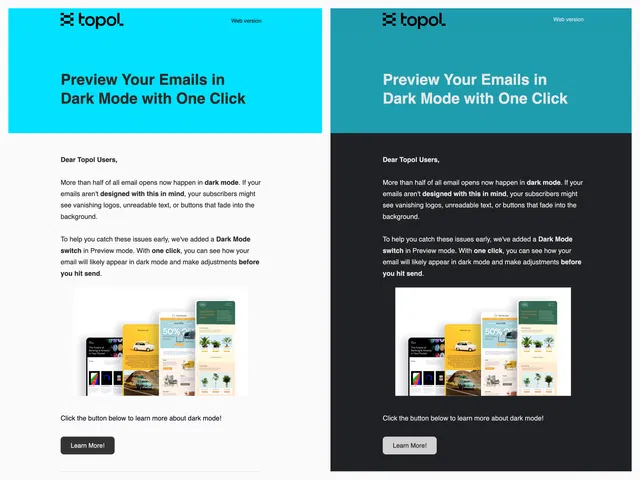
Smart color choices keep your email looking polished in both light and dark mode.
In Topol Email Editor, set your email body background to off-white instead of pure white before you start building. It's a small change that makes a real difference.
Preparing Images That Won't Vanish
Transparent logos are the most common dark-mode headache. Your dark logo looks perfect on a white background, but when the background turns near-black in dark mode, the logo vanishes like a magic trick nobody asked for.
The fix is straightforward: save your logo with a solid background baked into the image file rather than using transparency. Yes, you'll see a white rectangle around your logo in dark mode, but that's much better than an invisible logo.
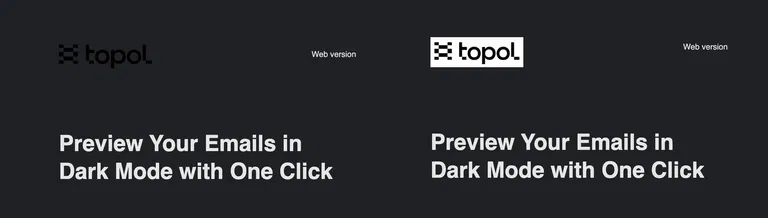
A white background behind your logo might not be the prettiest option, but it beats an invisible logo every time.
If your brand has both light and dark logo versions, keep both in your Topol File Manager asset library so you can choose the right one for each design context.
Creating Buttons that Stand Out
Buttons are too important to leave to chance. Choose midrange colors - not too light, not too dark. A vibrant orange or rich blue remains visible on both white and dark backgrounds.
Even more important: ensure there's a strong contrast between your button color and your button text. The text needs to be readable against the button itself, not just against the email background.

When your button color is too close to the background, a simple border helps keep it visible.
Adding a subtle border gives you extra peace of mind. Even if dark mode pushes your button color closer to the background, the border keeps the button clearly defined. In Topol Email Editor, you can enable button borders in the Button block preferences.
Working with Background Images
When you add a background image in Topol, you can also set a fallback background color - the color that shows if the image doesn't load or is stripped out by dark mode.
Choose this fallback thoughtfully. If you have white text over a photograph, pick a medium- or dark-toned fallback color so the text remains readable even if the image disappears.
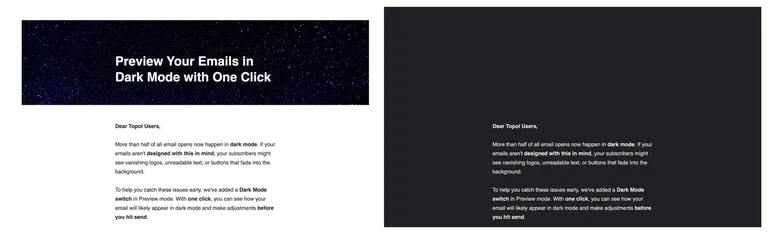
Background images can fail. A smart fallback color ensures your email doesn't fail with them.
Even better: place important text in solid-colored sections next to your images rather than layering it on top.
Testing Your Emails
Topol Email Editor now includes a dedicated Dark Mode switch in Preview mode. With one click, you can see a simulation of how your email will likely appear in dark mode. It's not a perfect replica across every email client (each provider applies dark mode differently), but it gives you a clear sense of what to expect and helps you catch obvious problems before you hit send.
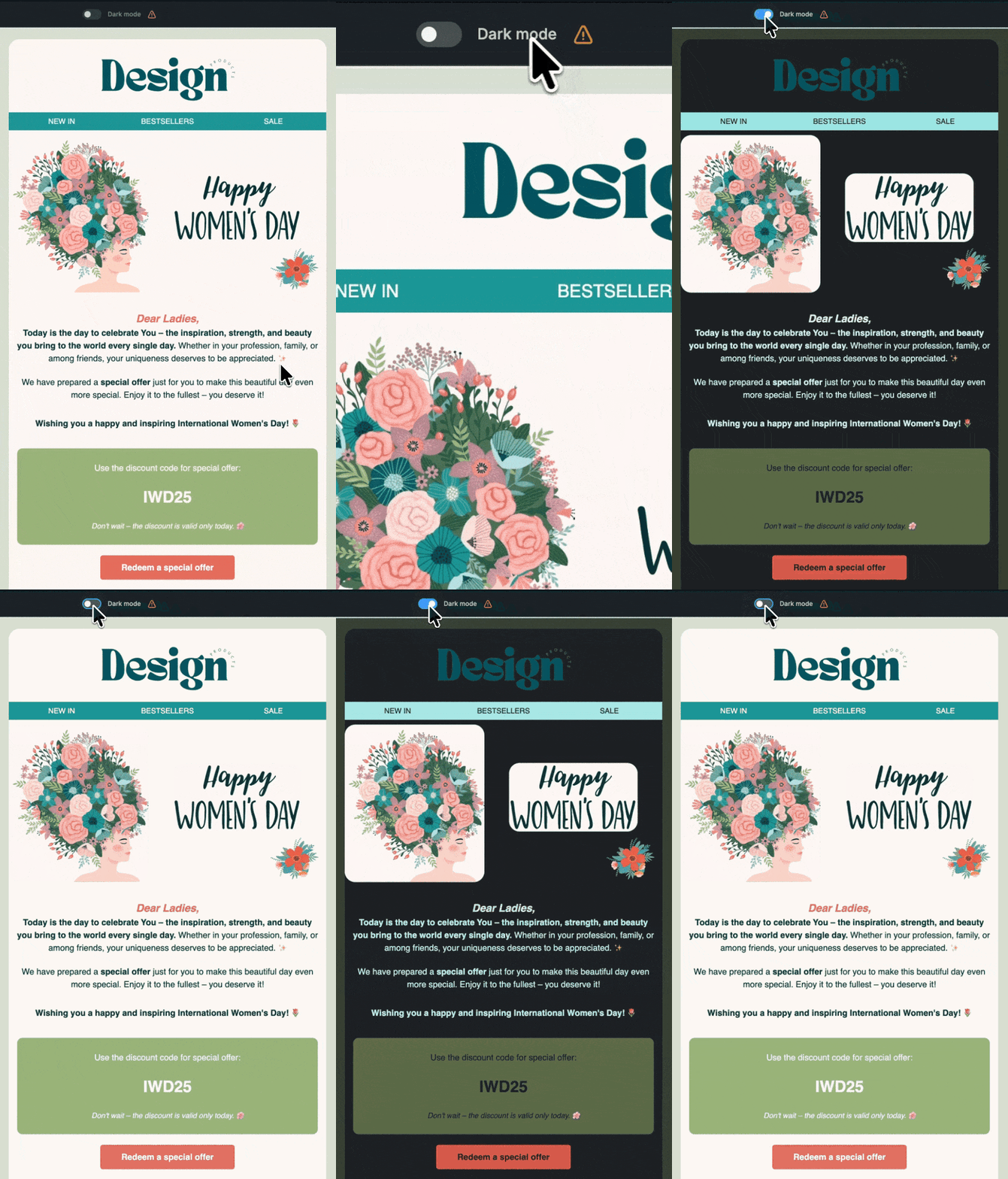
Just one click separates a great dark mode email from an unreadable mess.
For more thorough testing, send test emails to yourself (Topol Email Editor also allows this) and check them with dark mode enabled on your phone and desktop. Keep an eye out for:
- Your logo and header images
- Text sitting on coloured backgrounds
- Call-to-action buttons
- Any graphics with transparency
Hello Darkness, My Old Friend
Designing for dark mode comes down to a few good habits: avoid extreme colors, ditch transparency on logos, choose midrange button colors with strong text contrast, and set sensible fallback colors for background images. Build these choices into your templates once, and every future email benefits automatically.
Use our Dark mode preview to catch issues early, then test on real devices before sending. You're not aiming for pixel-perfect consistency across every email client, as that's unrealistic. The goal is simply to ensure your emails look good and remain readable wherever your subscribers open them.
And with Topol, getting there is now easier than ever.